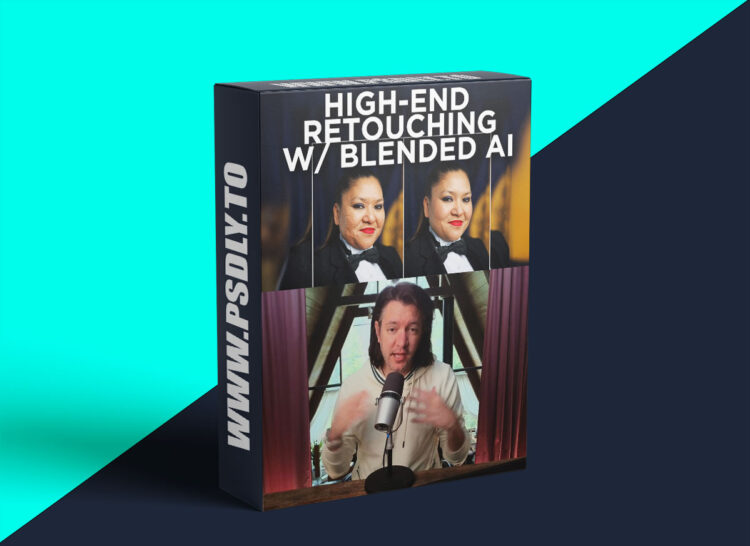
This is a quick and easy method I came up with to use AI rendered technology blended with an original source photo to create extremely realistic skin tones and overall high quality retouching. Once the ai render is made, it’s basically a one-click solution, but you can infinitely customize to taste. Retouching skin isn’t something I do a lot of (almost never for wedding work), but I recently did a batch of staff portraits and wanted to test a new Ai rendering model I came across called Leonardo. I developed a specific recipe of settings that work in an extremely realistic way! Left is original photo, right is using my method of blending an ai render with a source photo
and below is an example of me – left is original and right is the blend. I highly recommend testing any retouching method using self portraits so you have a clear idea about when things might have gone “too far.”
Video explains everything, and I’m curious if anyone has any thoughts/questions, or maybe even their own method utilizing an ai rendering tool of some kind. I’m working to build this into a real time workflow as you’re shooting with Insight.photo as a special shooting mode, if you don’t want to use it to get pose ideas, but that will be something for later in the year!
Video explains everything, and I’m curious if anyone has any thoughts/questions, or maybe even their own method utilizing an ai rendering tool of some kind.
I’m working to build this into a real time workflow as you’re shooting with Insight.photo as a special shooting mode, if you don’t want to use it to get pose ideas, but that will be something for later in the year!
Chapters
- 00:00 Introduction and Background
- 01:17 Discovering Leonardo AI
- 05:04 Upscaling the Rendered Image
- 05:47 Blending the AI Render with the Source Photo
- 07:10 Adjusting the AI Rendered Image
- 08:36 Exploring Different AI Render Results
- 09:31 Finalizing the AI Blended Image
- 10:01 Saving and Using the AI Blended Image
- 10:29 Future Possibilities and Conclusion